
Hide icons with built-in Windows tools
The fastest way to an empty desktop is already built into Windows. The setting simply turns off icon rendering. Your files stay where they are, the screen goes clean.
- Right-click a free spot on the desktop.
- Hover over View.
- Untick Show desktop icons.
Sort everything into folders by hand
The classic: create folders like Work, Games, Misc and drag everything in. The desktop gets noticeably cleaner, and you finally learn what was even lying on it.
- Create 3-4 folders by topic, more usually does not stick.
- Select icons with a rubber band and drag them in groups.
- Shortcuts of long-uninstalled programs (the white-sheet icon) are safe to delete.
Stop the flood of game shortcuts
If your desktop is buried under game shortcuts, it is almost always Steam and other launchers: by default they add a shortcut with every install. You can cut the flood off at the source.
- In Steam, untick add a desktop shortcut in the install dialog. Steam remembers the choice for future installs.
- Check the same in Epic Games Launcher, EA app and other launchers, the checkbox usually lives in the install settings.
- Simply delete the shortcuts you already have. The games themselves are not removed, a shortcut is only a link.
Paid desktop organizers
Tools like Stardock Fences group icons into zones right on the desktop. Order appears, but the icons stay where they were: the desktop remains busy, and the license costs about 10 dollars on a subscription model.
Vealo: an empty desktop with everything at hand
Vealo combines the best of the methods above. The desktop becomes completely empty, like in method one, but nothing is lost: every icon lives in a panel that opens with a click on an empty spot of the desktop. Games launch in one click, just like from the desktop before.
- Install Vealo and every desktop icon is swept into the panel. Empty desktop, files in place.
- Click an empty spot on the desktop or press Ctrl+Shift+F. The panel opens with a smooth animation, with sections inside: Games, Work, anything.
- Work with files right in the panel: rubber-band selection, copying, group drag and drop, renaming. For everyday tasks you no longer need File Explorer.
- Open Studio and paint everything your way: theme, wallpaper, clock, effects, cursor and keyboard lighting.

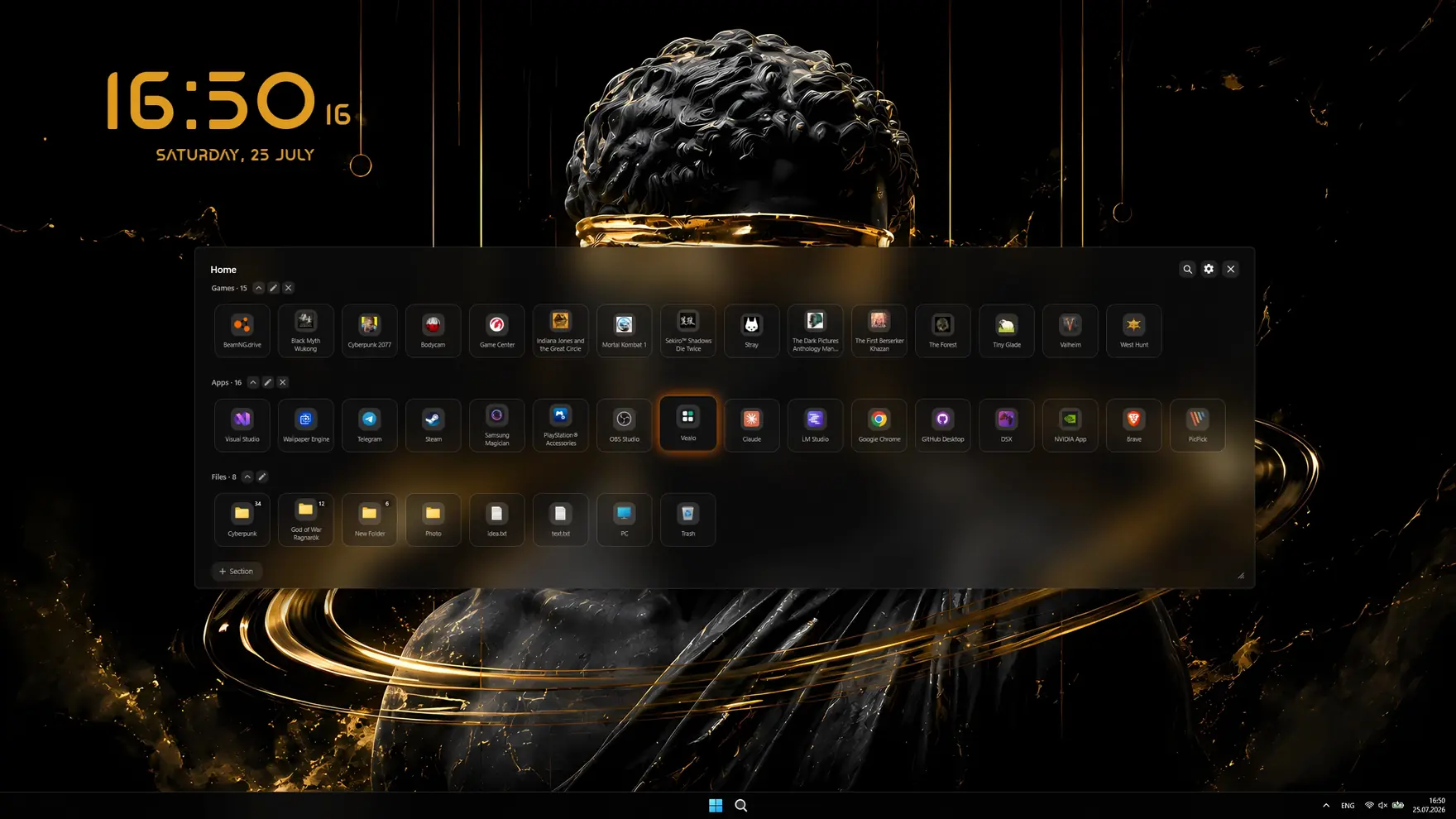
- Hide the clutter One click sweeps every desktop icon into the panel. Your wallpaper, finally uninterrupted.
- A panel that works Sections for your games and projects, group drag and drop, an image viewer and multi-monitor support. Plus search, and each screen can show only its own shortcuts.
- Themes and glass Ready-made palettes, the Mono style or real glass, plus a theme built from your wallpaper colours. And opening animations: Bloom, Cascade, Radial, Pop.
- Windows in your theme colour The taskbar takes your theme colour, and the whole system switches between light and dark along with it.
- 128 wallpapers included Anime, cars, cities, cozy scenes, nature and abstract. Hover a thumbnail. Your own file works too, and video wallpapers play under the icons.
- A living desktop A clock on your wallpaper plus rain, snow, leaves or sparks. Plus ambient sound: rain, fire, storm. They pause by themselves while you play.
- Device lighting Razer is set up straight from the app, and thousands of other devices connect through the free OpenRGB.
- Custom cursors Six shapes and any colour you like. Or bring your own: add .cur and .ani files, or a whole cursor pack from a folder.
- Setup profiles Your whole look saves in one click: Work, Gaming, Evening, Anime.
Which to pick: methods compared
| Method | Empty desktop | Quick access | Order that lasts | Price |
|---|---|---|---|---|
| Windows toggle | Yes | No | No | Free |
| Manual cleanup | Partly | So-so | Until the next pile | Free |
| Disable game shortcuts | Partly | Launcher only | Yes | Free |
| Fences and similar | No | Yes | Yes | ~$10, subscription |
| Vealo | Yes | Yes | Yes | Free |
Questions, answered
Will hiding desktop icons delete my files?
No. Both the built-in Windows toggle and Vealo only hide the icons from the screen. The files stay untouched in your Desktop folder. Turn the icons back on and everything returns.
How do I quickly bring the icons back?
Built-in: right-click the desktop, View, Show desktop icons. In Vealo just switch off the empty-desktop mode or close the app, and your normal desktop is back instantly.
How do I stop Steam from creating game shortcuts on install?
Untick the desktop-shortcut checkbox in the install dialog. Existing shortcuts are safe to delete by hand, the games themselves are not removed. Or sweep everything into the Vealo panel, where games stay one click away.
Is Vealo really free?
Free covers a lot: hide and search, all static themes, both Mono and Glass styles, taskbar colour, all 128 wallpapers and video wallpapers, the rain effect, all six widgets with two views each, the Roulette, two cursors and basic lighting. Pro unlocks the theme built from your wallpaper, custom colours, all effects plus parallax and the sound visualizer, all cursors plus your own files and packs, all widget styles and views, all lighting effects, unlimited sections and profiles, and wallpaper on the lock screen.
What else can Vealo do?
Quite a lot. It hides the desktop icons and opens everything from a panel, sets wallpapers and video wallpapers, adds widgets (clock, weather, calendar, notes, system load, player), desktop effects, lighting in the theme colour, cursors, and ready-made looks from the Steam Workshop. The full list is on the features page.
A clean desktop in one click
Try it on your own machine before you buy anything.
Free€0 · Forever
- Hide, summon and search
- All ready-made themes, Mono and Glass
- Taskbar colour, light and dark system
- All 128 wallpapers and video wallpapers
- 6 widgets: clock, player, calendar, weather, system, notes
- Rain effect, 2 cursors and the Roulette
- Lighting: static and breathing
- 2 sections and 2 profiles
Pro€2.99 · Launch price
- Everything in Free
- Theme from your wallpaper and custom colours
- All effects, parallax and the sound visualizer
- All cursors plus your own, all widget styles
- All lighting effects
- Glass transparency and neon
- Unlimited sections and profiles
- Wallpaper on the lock screen