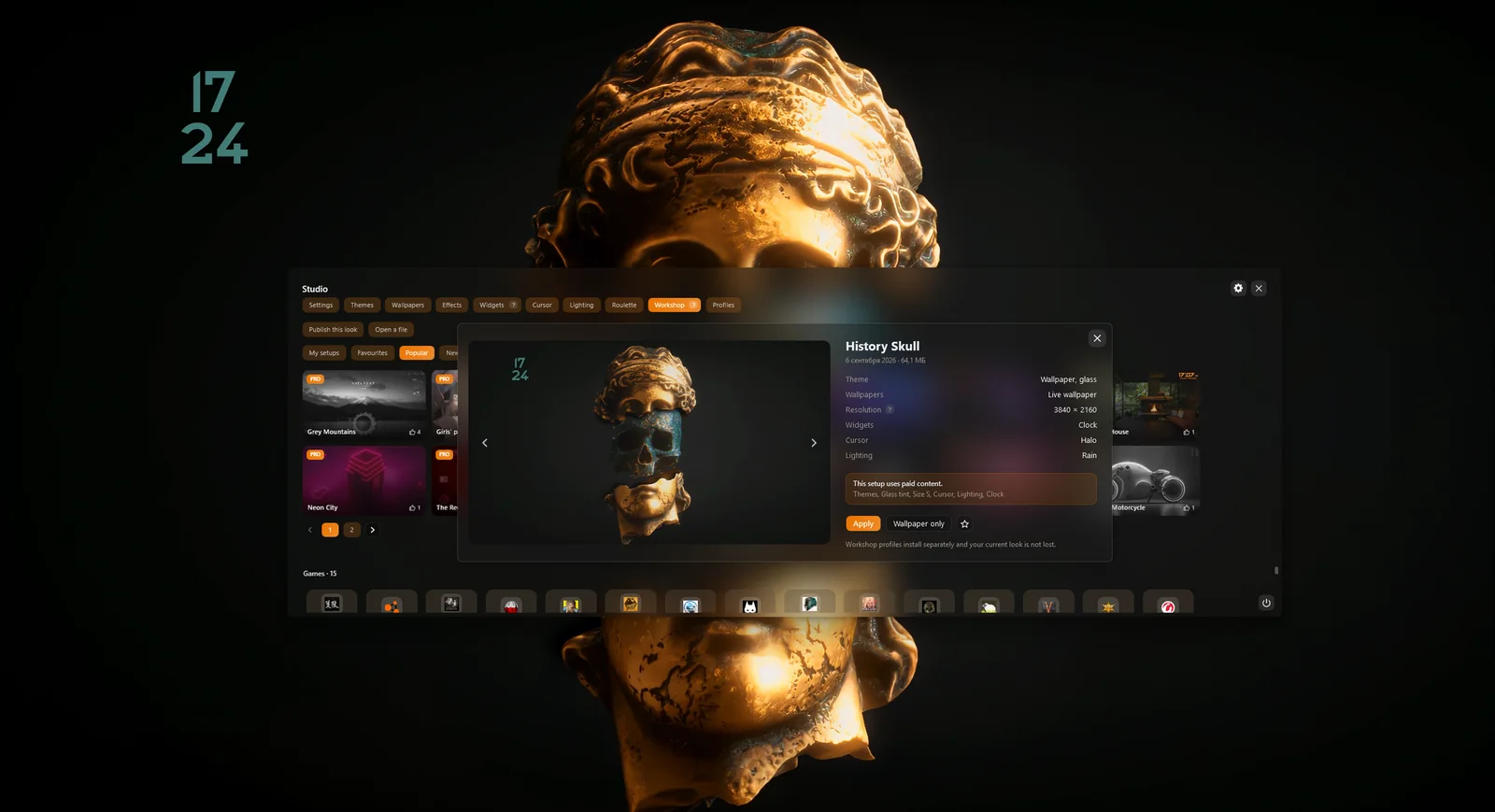
What goes into the file, and what stays
A setup is a .vealo file. Inside is your desktop exactly as it is now: theme, wallpaper or live wallpaper, widgets and where they sit, effects, lighting. The wallpaper image is packed into the file, so the subscriber gets exactly the same picture.
- Goes in. Theme and colours, wallpaper and video wallpaper, clock, player, system load, calendar, weather, notes as a widget, effects, lighting.
- Stays with you. Folders and files in the panel, note text, weather city, sounds from your own files, a custom cursor from a file.
- Size. Image up to 4K, video up to 2 GB. A subscriber has no reason to download more.
- Private. File paths and your Windows user name never enter the file: the picture travels as a picture, not as a path.
Save the look as a setup
First arrange the desktop the way you want to show it. Then:
- Open Studio and the Workshop tab.
- Click Create a setup.
- In the New setup window type a name and confirm with Enter. Everyone will see the name, so no caps lock and no odd symbols.
The file appears under My setups. For now it lives only on your PC: you can apply it, star it, rename it with a right click, or save it as a file and send it to a friend without Steam.
Publish to Steam
Steam must be running and you must be signed in. Right-click your setup and choose Publish to Steam. The Publish to the Workshop window opens.
This is the publish window. You can pick at most two moods.
- Mood. One or two of eleven: Dark, Light, Minimal, Neon, Nature, Space, Anime, Cars, Retro, Gaming, Other. This is what the filters search by; without a mood the button will not work.
- Age. “Everyone” or “18+”. With “18+” the mature content flag goes to Steam by itself, and you can add what exactly is inside: Nudity or sex or Violence or gore.
- Type. The app detects it and shows it before you click: “Full desktop”, “Wallpaper and theme”, “Widget layout” or live wallpaper.
- Click Publish.
Everything else the app fills in from the file itself: image resolution and aspect, main colour, which widgets are inside, whether there are effects and lighting, whether there are paid parts. You never type tags by hand, and they cannot lie.
Make the setup public
A new item is visible only to you. That is on purpose: first you look at the page and check the name and preview, and only then open it to people.
- Click Page in Steam in the app, or open the item in the Vealo Workshop on the Steam site.
- In the owner controls on the right find Visibility and choose “Public”.
- There you can also fix the title, description and images, and for adult setups check the content descriptors.
A few minutes later the setup shows up in the app under “New” and “My published”, and its card in “My setups” gets a Steam badge.
What happens next
- Subscriptions. People click “Subscribe” right in the card, the file downloads, and the “Apply” and “Wallpaper only” buttons appear. Nobody has to take the whole desktop; a single picture is fine too.
- Ratings. Likes, dislikes and favourites are set from the card in the app and count in Steam right away, same as on the item page.
- Stats. On the item page in Steam the author has a “Stats” tab: views, subscriptions and favourites by day. In the app the like counts are shown in the card.
- Feedback. Comments and discussions live on the item page. Tick “Subscribe” there and new messages will arrive as Steam notifications.
Questions
Do I need Vealo Pro to publish?
No. Publishing to the Workshop is free. Pro is needed for your own image or video on the desktop; a setup on a wallpaper from the built-in set can be published without it.
What does a subscriber without Pro see if my setup has paid parts?
The card shows a “Only paid content is inside this setup: it will be tried on with free replacements.” plate with the list. The setup is applied without those parts; everything else lands as it is on your desktop.
Why is my setup not visible in the Workshop?
A new item is created only for you. Open its page in Steam and set “Visibility” to “Public”. After that it appears under “New” within a few minutes.
Can I change the title or image after publishing?
Yes, on the item page in Steam: “Edit title & description” and “Add/edit images & videos”. Renaming in the app is available only while the setup is not published yet.
Steam says “too many publications in a row”. What now?
Wait a few minutes and click “Publish to Steam” again. Steam limits how often an account may create items; the file itself is fine.
Can I share a setup without Steam?
Yes. Right-click the setup, “Save as a file”, and send the .vealo file any way you like. The recipient opens it with “Open a file” in the Workshop tab.
What else can Vealo do?
Quite a lot. It hides the desktop icons and opens everything from a panel, sets wallpapers and video wallpapers, adds widgets (clock, weather, calendar, notes, system load, player), desktop effects, lighting in the theme colour, cursors, and ready-made looks from the Steam Workshop. The full list is on the features page.
A clean desktop in one click
Try it on your own machine before you buy anything.
Free€0 · Forever
- Hide, summon and search
- All ready-made themes, Mono and Glass
- Taskbar colour, light and dark system
- All 128 wallpapers and video wallpapers
- 6 widgets: clock, player, calendar, weather, system, notes
- Rain effect, 2 cursors and the Roulette
- Lighting: static and breathing
- 2 sections and 2 profiles
Pro€2.99 · Launch price
- Everything in Free
- Theme from your wallpaper and custom colours
- All effects, parallax and the sound visualizer
- All cursors plus your own, all widget styles
- All lighting effects
- Glass transparency and neon
- Unlimited sections and profiles
- Wallpaper on the lock screen