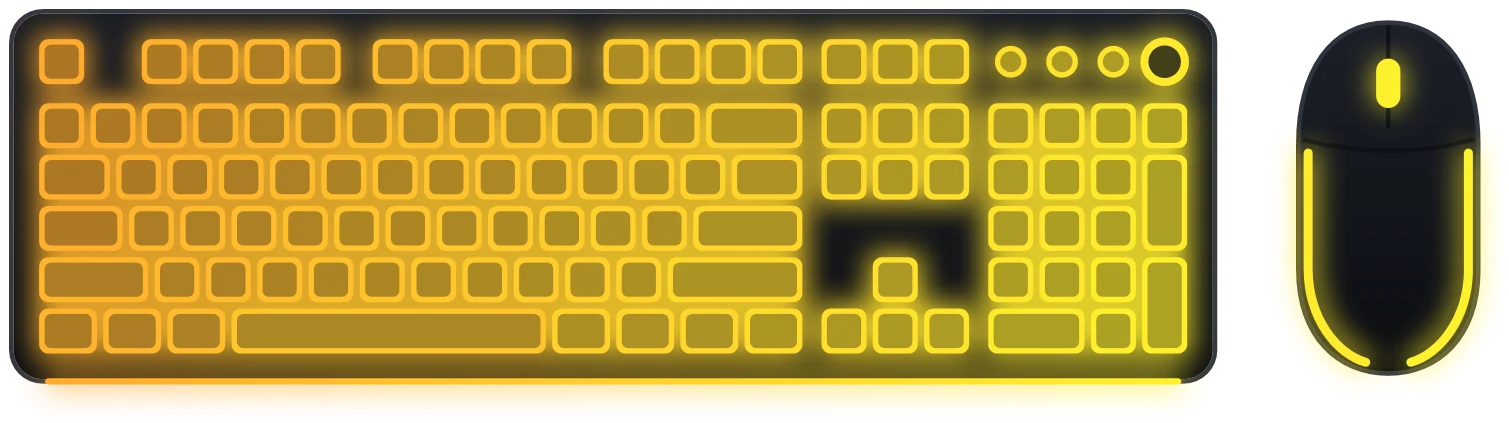
What you need and what to know
You need three things: a Corsair device from the OpenRGB list, OpenRGB itself, and iCUE closed.
- Check your model in the field below. The list has 94 Corsair entries: K55, K60, K65, K70, K95 and K100 keyboards, M65, Dark Core, Harpoon, Ironclaw and Katar mice, MM700 and MM800 Polaris mousepads, RAM, Commander and Lighting Node controllers, and Hydro liquid coolers.
- Close iCUE completely from its tray icon, not with the window's close button. Only one app can control a device's lighting.
- Remove iCUE from Windows startup, otherwise it takes the lighting back after a restart.
Wireless mice are listed with the mark “Wired”: OpenRGB controls them when they are connected by cable. If iCUE and OpenRGB run at the same time, the device gets commands from both and the lighting flickers. This is not a fault. It is simply two apps controlling the same device.
Setting up OpenRGB
You only do this once. After that OpenRGB starts with Windows and runs in the tray, and Vealo finds the devices on its own.
- Download OpenRGB from the official site openrgb.org and install it.
- Open Settings, then General Settings, and turn on three options: Start At Login, Start Minimized and Start Server.
- Check that your Corsair devices appear in the OpenRGB list, then close the window.
The key option here is Start Server. Without it OpenRGB still runs, but other apps cannot connect to it, and Vealo will tell you so in the “Connection” window.
Turn on lighting in Vealo
Vealo connects to OpenRGB on its own and checks the link every two seconds while the lighting tab is open.
- Open the Studio, go to the Lighting tab and pick an effect in the Effect row. Choosing an effect turns the lighting on, and the “Off” button turns it off.
- Click Connection. The window shows whether OpenRGB is connected and how many devices it has passed on. If OpenRGB is not running or not installed, the same window has Open OpenRGB and Get OpenRGB buttons. The circular arrows button next to it restarts OpenRGB: this picks up devices connected later and gets a frozen animation moving again. The lighting pauses for a few seconds while this happens.
- Choose a colour. By default it comes from your desktop theme and changes along with it. To set your own colour, use the eyedropper.
- Theme colour. Lighting set to the theme colour recolours itself whenever you change the theme or the wallpaper.
- Per-key effects. Wave, fire, rain, starlight and other effects travel across the keyboard from key to key, and along the LEDs on RAM and fans. The device does not just glow in one solid colour.
- Every brand in one tab. Corsair peripherals and RAM, fans, the motherboard and SteelSeries, Logitech and Razer devices are all lit from one place with one effect.
- Try before you buy. Static and breathing are in the free version, so you can test the connection on your own devices before buying. The other effects are part of Pro.
The general lighting guide: how Razer and OpenRGB work, the device check and what to do when nothing lights up: All your RGB in one place.
Questions
The lighting flickers and changes colour on its own.
iCUE and OpenRGB are running at the same time, and both send commands to the device. Close iCUE from the tray and remove it from startup.
OpenRGB is running, but Vealo says it cannot connect.
The Start Server option is not turned on in the OpenRGB settings. Turn it on and restart OpenRGB.
The keyboard lights up, but the mouse is not in the list.
The mouse was connected after OpenRGB started, or it is running wirelessly. Connect it by cable and click the circular arrows button next to “Connection”: OpenRGB restarts and finds it.
Can I keep iCUE for macros and DPI settings?
Then two apps would be controlling the lighting, and it would start to flicker. For lighting through Vealo, iCUE has to be closed.
The lighting animation has frozen.
Click the circular arrows button next to “Connection”. OpenRGB restarts, and the effect continues after a few seconds.
Does this work without Vealo Pro?
Yes. The connection, theme colour, static and breathing are free. The other effects are unlocked by Pro.
What else can Vealo do?
Quite a lot. It hides the desktop icons and opens everything from a panel, sets wallpapers and video wallpapers, adds widgets (clock, weather, calendar, notes, system load, player), desktop effects, lighting in the theme colour, cursors, and ready-made looks from the Steam Workshop. The full list is on the features page.
Your desktop, one click
Free on Steam. Pick a setup or build your own, Pro only when you want the rest.
Free€0 · Forever
- Hide, summon and search
- All ready-made themes, Mono and Glass
- Taskbar colour, light and dark system
- All 128 wallpapers and video wallpapers
- 6 widgets: clock, player, calendar, weather, system, notes
- Rain effect, 2 cursors and the Roulette
- Lighting: static and breathing
- 2 sections and 2 profiles
Pro€2.99 · One-time purchase
- Everything in Free
- Theme from your wallpaper and custom colours
- All effects, parallax and the sound visualizer
- All cursors plus your own, all widget styles
- All lighting effects
- Glass transparency and neon
- Unlimited sections and profiles
- Wallpaper on the lock screen