The built-in Windows dark theme
The easiest route is already in the system. One switch turns every window, menu, Settings, File Explorer, the taskbar and Start dark at once, with no restart.
- Open Settings (press Win + I).
- Go to Personalization, then Colors.
- Under Choose your mode, pick Dark.
Split mode: system and apps separately
Windows can keep just one thing dark. A common pick: a dark taskbar and Start but light app windows, or the reverse. Same Colors screen, the Custom mode.
- Settings, Personalization, Colors.
- Under Choose your mode, pick Custom.
- Set the Windows mode (taskbar and Start) and the app mode separately: for example Windows dark, apps light.
A fully black theme (AMOLED)
The built-in dark mode is really dark grey, not black. For true black (which matters on OLED and AMOLED laptop screens, where black pixels simply do not light up and so draw no power) you need a black wallpaper and a dark accent.
- Turn on dark theme from method 1.
- Set a black wallpaper: right-click the desktop, Personalize, Background, and choose a black image or a solid black colour.
- In Colors, turn off transparency and pick a dark accent so menu highlights do not dilute the black.
Automatic day/night switching
A reasonable wish: light by day, dark in the evening, automatically. But Windows has no built-in option for this, unlike phones. You need a third-party app.
- The most popular free open-source option is called Auto Dark Mode: it switches the theme by time, or by your city's sunset and sunrise.
- Install it, set the switch hours or the sun binding, and Windows will change the theme by itself.
- Note: it is one more app in startup, running in the background.
Vealo: dark theme and a clean desktop at once
Vealo hides your desktop icons into one beautiful panel and manages the colour of the whole system too. Pick a dark panel theme and Vealo switches all of Windows to dark along with it: taskbar, Start and system colours. One app instead of two.
- Install Vealo, your desktop icons move into the panel, the desktop goes empty.
- Open the panel with a click on an empty spot of the desktop or a hotkey, and go to settings.
- Pick a dark theme (or black) and turn on match system: Windows switches to dark along with the panel.
- The panel theme also tints the taskbar, so the whole interface reads as one piece.
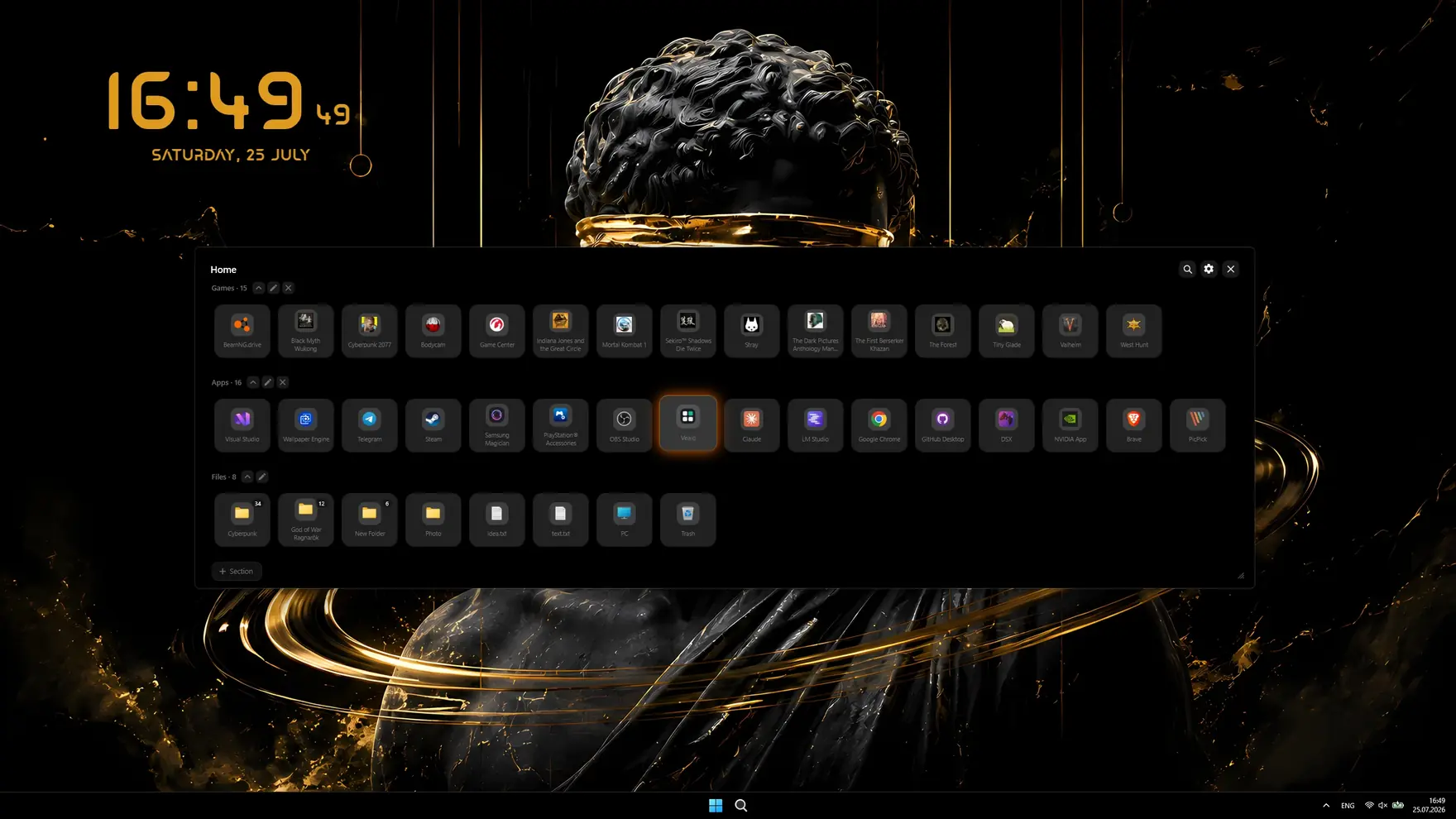
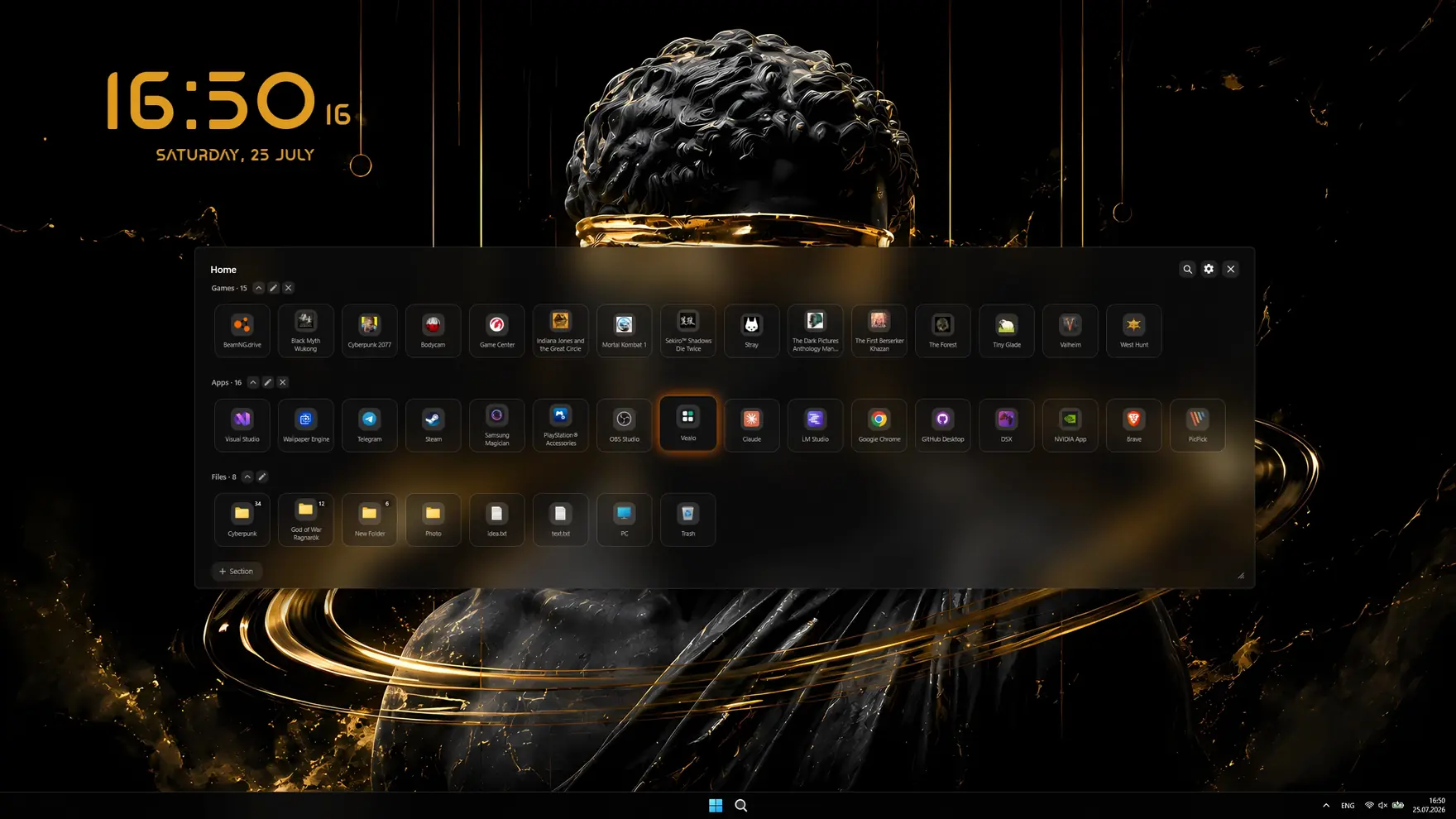
- Dark and black themes in one click, plus custom colours
- Match system: Windows follows the panel's light or dark theme
- Taskbar in your theme colour, no TranslucentTB-style tools needed
- A clean desktop: icons hide into the panel, you finally see the wallpaper
- Glass style (Windows 11 acrylic) with transparency control
- Offline and private: no accounts, no telemetry, everything stays on your PC
Which to pick: methods compared
| Method | Apps | Taskbar and Start | True black | Price |
|---|---|---|---|---|
| Built-in dark mode | Yes | Yes | Dark grey | Free |
| Split mode | Your choice | Your choice | Dark grey | Free |
| Black AMOLED theme | Yes | Yes | Yes | Free |
| Auto Dark Mode | Yes, by time | Yes, by time | Dark grey | Free |
| Vealo | Yes | Yes, in theme colour | Yes | Free |
Questions, answered
Does dark theme save battery?
On regular IPS and VA screens, barely: the backlight stays on for any colour. Real savings happen only on OLED and AMOLED screens, where a black pixel is physically off and draws no power.
Why do some apps stay light after I turn on dark theme?
Those apps do not follow the Windows system theme and paint their own interface. Dark mode has to be switched on inside their own settings, and if there is no such option the app stays light.
How do I switch dark theme automatically by time of day?
Windows cannot do this out of the box. You need a third-party app: the free open-source Auto Dark Mode switches on a schedule or at sunset and sunrise. Vealo switches the whole system to follow the panel's theme.
Is dark theme bad for your eyes?
The opposite: in a dark room a bright light screen tires the eyes more. In bright daylight a light theme is easier to read, so switching between them by lighting is the comfortable choice.
What else can Vealo do?
Quite a lot. It hides the desktop icons and opens everything from a panel, sets wallpapers and video wallpapers, adds widgets (clock, weather, calendar, notes, system load, player), desktop effects, lighting in the theme colour, cursors, and ready-made looks from the Steam Workshop. The full list is on the features page.
A clean desktop in one click
Try it on your own machine before you buy anything.
Free€0 · Forever
- Hide, summon and search
- All ready-made themes, Mono and Glass
- Taskbar colour, light and dark system
- All 128 wallpapers and video wallpapers
- 6 widgets: clock, player, calendar, weather, system, notes
- Rain effect, 2 cursors and the Roulette
- Lighting: static and breathing
- 2 sections and 2 profiles
Pro€2.99 · Launch price
- Everything in Free
- Theme from your wallpaper and custom colours
- All effects, parallax and the sound visualizer
- All cursors plus your own, all widget styles
- All lighting effects
- Glass transparency and neon
- Unlimited sections and profiles
- Wallpaper on the lock screen